Set Up a Free Static IP for Broker API Orders
Brokers reject API orders from an unregistered IP. Get a fixed address from your internet provider or a free Oracle Cloud VM, and keep orders flowing when you change networks.
Indian brokers accept API orders only from an IP address you have registered with them, a requirement of SEBI's framework for retail algorithmic trading. Imperium Trader places orders through your broker's official API, so every order has to leave from a whitelisted address.
There are two ways to get that address. Your internet provider can assign a static IP to your home connection, or a cloud virtual machine can give you one that works from any network. This guide covers both, then sets up a free Oracle Cloud machine and connects it to Imperium Trader.
How broker IP whitelisting works
You register the address where you generated your API key and secret. On Zerodha, that is the IP Whitelist field in your Kite Connect developer profile; other supported brokers have an equivalent setting in their API console.
- Order requests are checked. Place, modify and cancel requests from any other address are rejected. Market data in Imperium Trader stays on your direct connection.
- Two addresses. Brokers accept a primary and a secondary IP for each API app.
- Limited changes. Kite Connect allows one whitelist change per calendar week, so the address you register needs to stay fixed.
Two ways to get a static IP
A static IP from your internet provider
Ask your provider, such as Jio or Airtel, for a static IP on your broadband connection and register it with your broker. Nothing needs configuring in Imperium Trader: with no virtual machine set, orders go straight to your broker from your connection.
The address belongs to that connection, not to your laptop. Switch to a mobile hotspot during a broadband outage, or trade from the office, and your orders are rejected because the new network's IP is not whitelisted.
A static IP from a cloud virtual machine
A virtual machine in your cloud account has a fixed public IP of its own. Imperium Trader sends order requests through an encrypted SSH tunnel to that machine, so your broker sees the machine's IP whichever network your laptop is on.
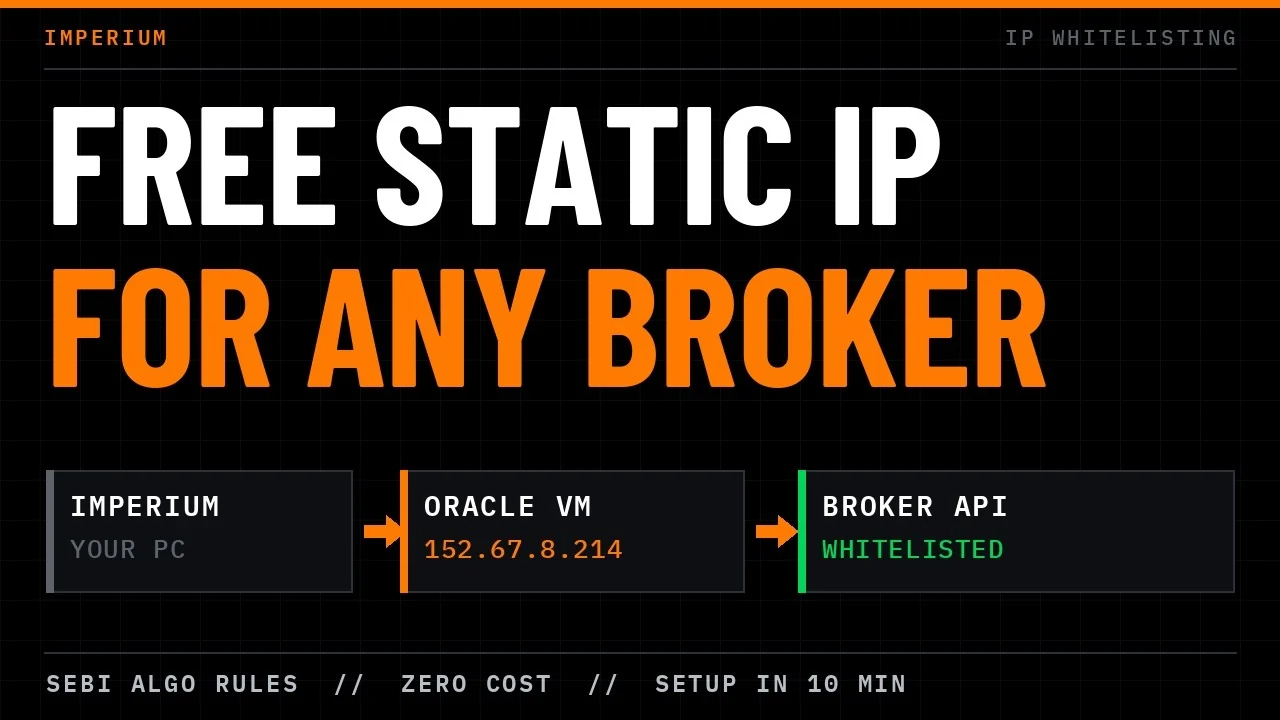
Routing orders needs very little computing capacity, so a free-tier instance is enough. Any Linux server with SSH works, including Oracle Cloud, AWS, Google Cloud and Azure.
| Consideration | ISP static IP | Cloud virtual machine |
|---|---|---|
| Works when you change networks | No | Yes |
| Setup | Request from your provider | About ten minutes on Oracle Cloud |
| Cost | Set by your provider | Free within Always Free limits |
| You maintain | Nothing extra | A VM in your own cloud account |
Create a free virtual machine on Oracle Cloud
Oracle Cloud's Always Free tier includes small compute instances with a public IP address. Create an account at cloud.oracle.com with Start for free. Oracle verifies your card with a small charge and refunds it.
Your home region is set during sign-up, and Always Free instances must be created there. Choose the Indian region closest to you, such as India South (Hyderabad) or India West (Mumbai). Always Free capacity varies by region.
1. Create the network
- Open the navigation menu and select Virtual cloud networks.
- Choose Start VCN Wizard with Create VCN with Internet Connectivity selected.
- Name the network Imperium VCN, select Next, then Create.
2. Create the instance
- Open the navigation menu, select Instances, then Create instance. If the menu entry is not visible, search the console for instances.
- Name the instance Imperium VM.
- Under Image and shape, change the image to Canonical Ubuntu. Keep a shape marked Always Free Eligible, such as VM.Standard.E2.1.Micro.
- Leave Security unchanged.
- Under Networking, keep Imperium VCN and its public subnet, with a public IPv4 address assigned.
- Under Add SSH keys, download the private key and store it somewhere safe. Imperium Trader needs this file to connect, and Oracle offers the download only on this screen.
- Leave Storage unchanged, review the settings and select Create.
The instance shows as provisioning, then Running within a minute. Open View details and, under Instance access, note the Public IP address and the Username, which is ubuntu.
Connect the machine to Imperium Trader
Imperium Trader installs its order relay on the machine over SSH. You provide the address, the username and the key.
- Open Order Routing and select Add Virtual Machine.
- Give the machine a name you will recognise, such as Oracle Hyderabad. You can add more than one machine.
- Choose Oracle Cloud as the provider. For a machine hosted elsewhere, choose Other Linux Server.
- Enter the public IP in IP address / host, enter ubuntu as the SSH Username and select the private key file you downloaded.
- Confirm Trust this machine. You created the machine, so its identity is expected.
- When the wizard shows Ready to deploy, deploy. Imperium Trader copies the relay files to the machine and starts the service.
- When the machine is ready, select Set as Default Machine.
Order Routing now shows Live routing through Oracle Hyderabad. The relay runs in your cloud account, not on an Imperium server, and does not persist or log your broker credentials. The security page documents both connection paths.
Whitelist the machine's IP with your broker
Copy the machine's public IP from Order Routing, open your broker's API profile and paste it into the IP whitelist. On Kite Connect, save it in the IP Whitelist field of your developer profile.
From then on, place, modify and cancel requests leave from the virtual machine. Take your laptop anywhere and change networks freely; your broker sees the same address.
Keep your home IP and the virtual machine together
If your broadband already has a static IP, register it as the primary address and the virtual machine as the secondary.
- At home, select Pause Machine. Orders go straight to your broker from your home connection, and the machine's settings are kept.
- Away from home, resume the machine. Orders route through it again, from its whitelisted IP.
Both addresses stay registered, so switching needs no change at your broker. If the machine becomes unreachable while you are at home, pausing it keeps your orders on the direct connection.
What it costs
Order routing uses little CPU, memory or bandwidth, so it fits within Oracle's Always Free limits. Other providers bill pay-as-you-go instances by usage, and a relay carrying only orders sits at the low end of that range.
Oracle may stop Always Free instances it classes as idle, and an order relay uses little CPU. If yours is stopped, restart it from the console; upgrading the account to Pay As You Go exempts its instances from idle reclamation. Order Routing flags Static IP changed if the machine's public address changes.
Pricing, free-tier limits and availability are set by your cloud provider and can change under its terms.
If orders are still rejected
- The IP whitelisted with your broker matches the public IP of your Default Machine.
- The machine is not paused, unless the network you are on has its own whitelisted IP.
- The instance shows as Running in the Oracle Cloud console.
- The whitelist was saved on the same API app whose key and secret Imperium Trader uses.